Write the Skeddy
Seven steps from blank schedule to signed product.
Check Dashboard
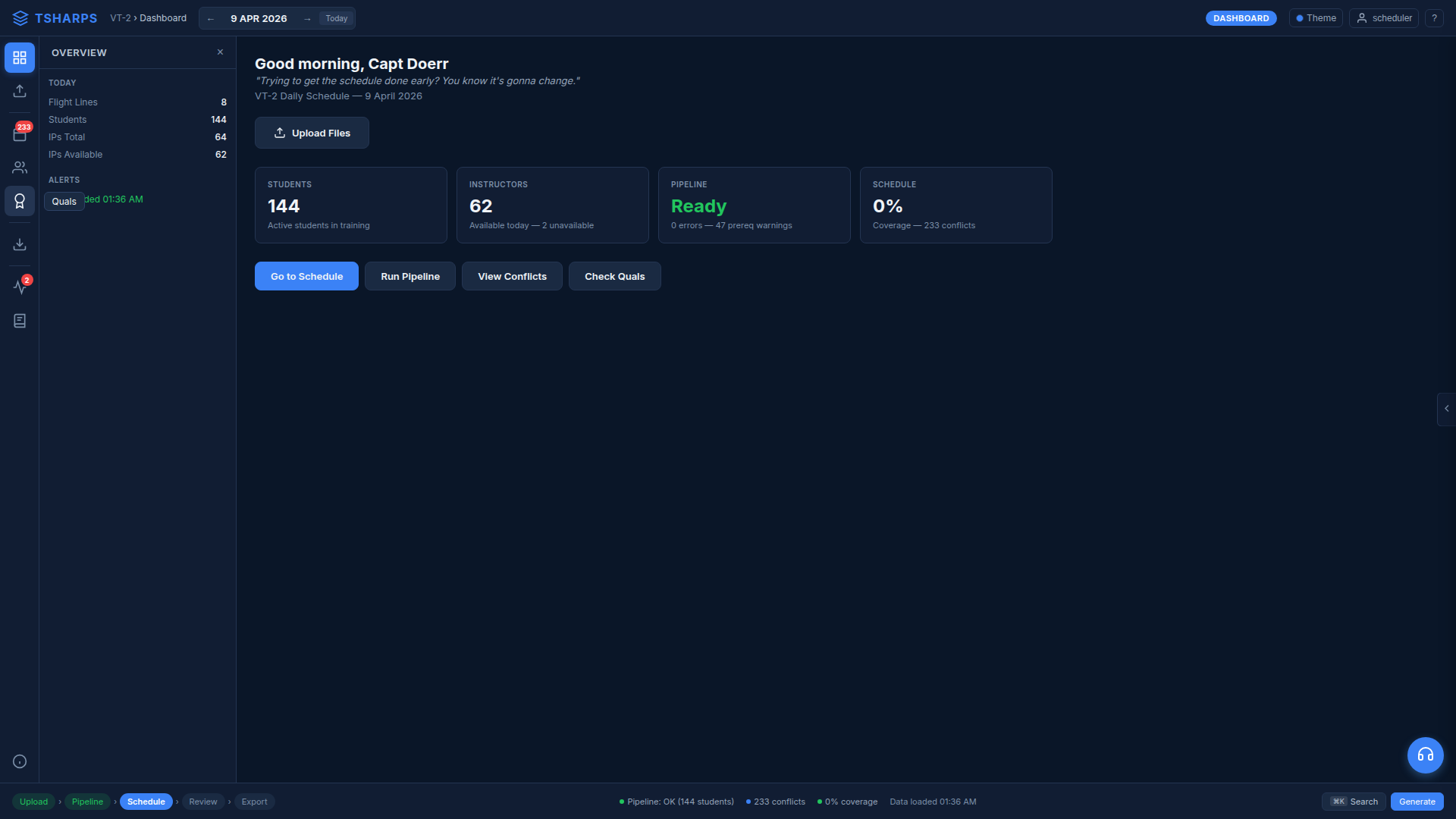
Open the Dashboard (grid icon, top of left rail). Verify student count, IP availability, and pipeline status. If anything is flagged, resolve it before continuing.
Set the Date
Use the left/right arrows in the header or click the date to open the calendar. Select the target fly day. The system loads all data for that date.
Upload Files
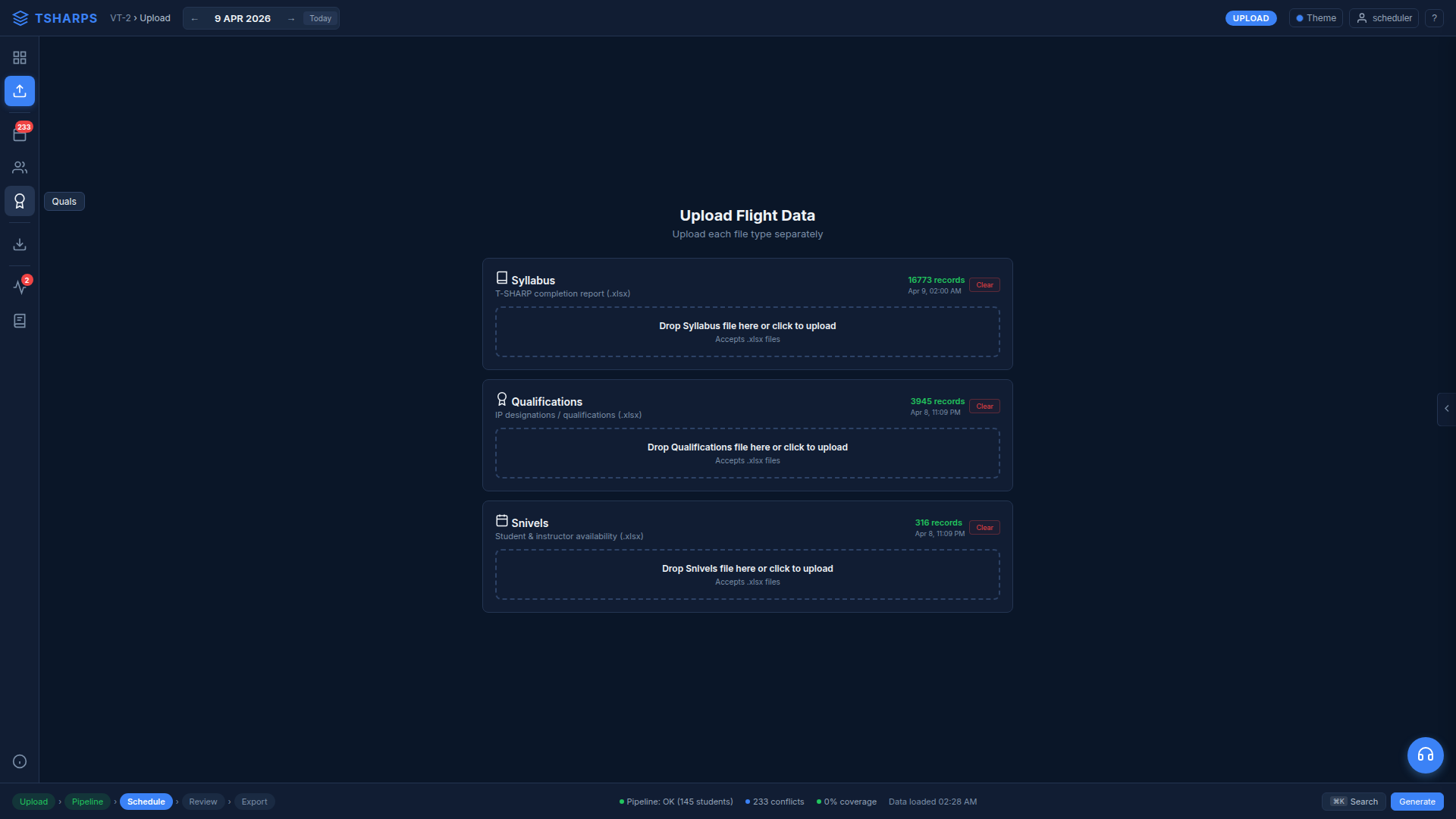
- Navigate to the Upload module (arrow icon in rail)
- Upload Syllabus data (.xlsx), Qualifications (.xlsx), and Snivels (.xlsx)
- System validates and reports errors row by row
Confirm Availabilities
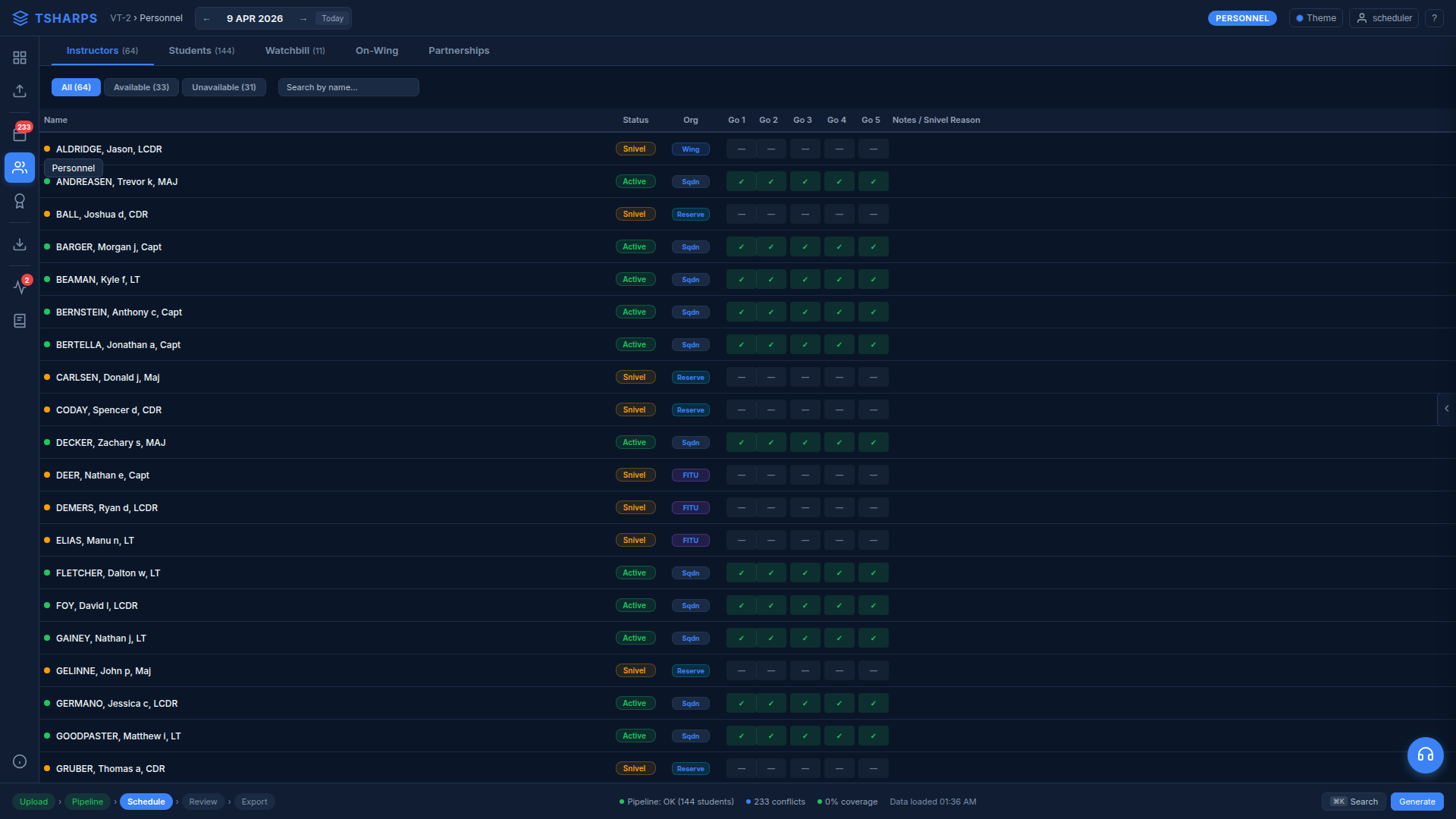
- Go to Personnel (people icon) → Instructors tab
- Green checkmarks in GO columns = available, dashes = sniveled
- Verify enough IPs are available for each GO period
- Check for any last-minute snivels or duty conflicts
Confirm Next Events
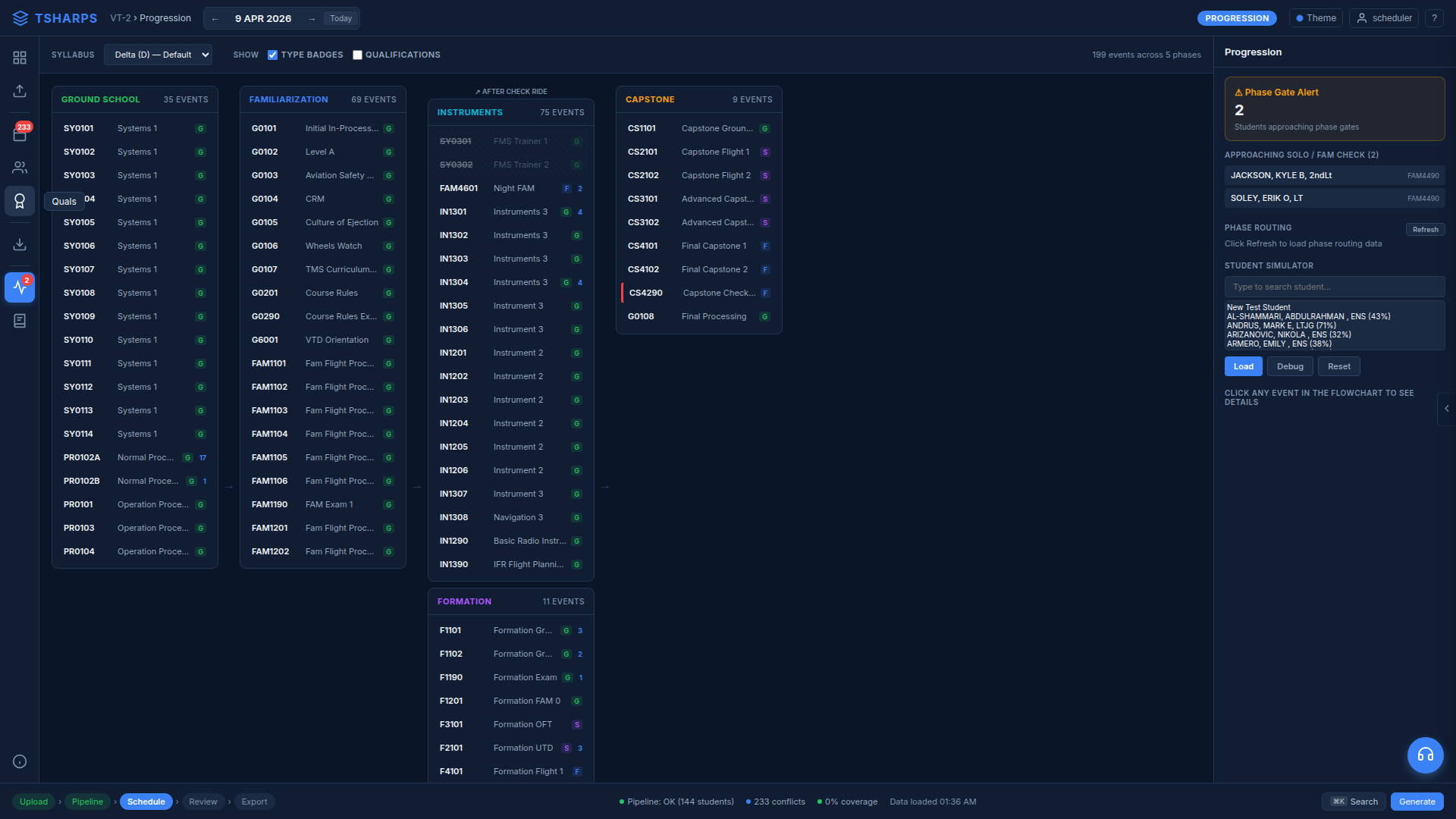
- Open the Progression module (chart icon in rail)
- Verify each student's next event is correct
- Override any that need adjustment (click student → override)
- Check for students on hold who should not be scheduled
Generate
- Click Generate (bottom-right or schedule toolbar)
- The optimizer pairs students with qualified IPs and assigns GO slots
- Takes 5–30 seconds depending on squadron size
- Result loads as a new draft — nothing is published
Review & Sign
- Walk through each line to verify pairings, events, and times
- Click any slot to make manual adjustments
- Check the conflict counter — aim for zero
- Save draft, then advance through: Schedule → Review → Export
Schedule View
Reading and editing the daily flight schedule grid.
Date Navigation
- ← / → arrows — Step through dates
- Click the date — Opens calendar picker
- Today button — Jump to current date
The Grid
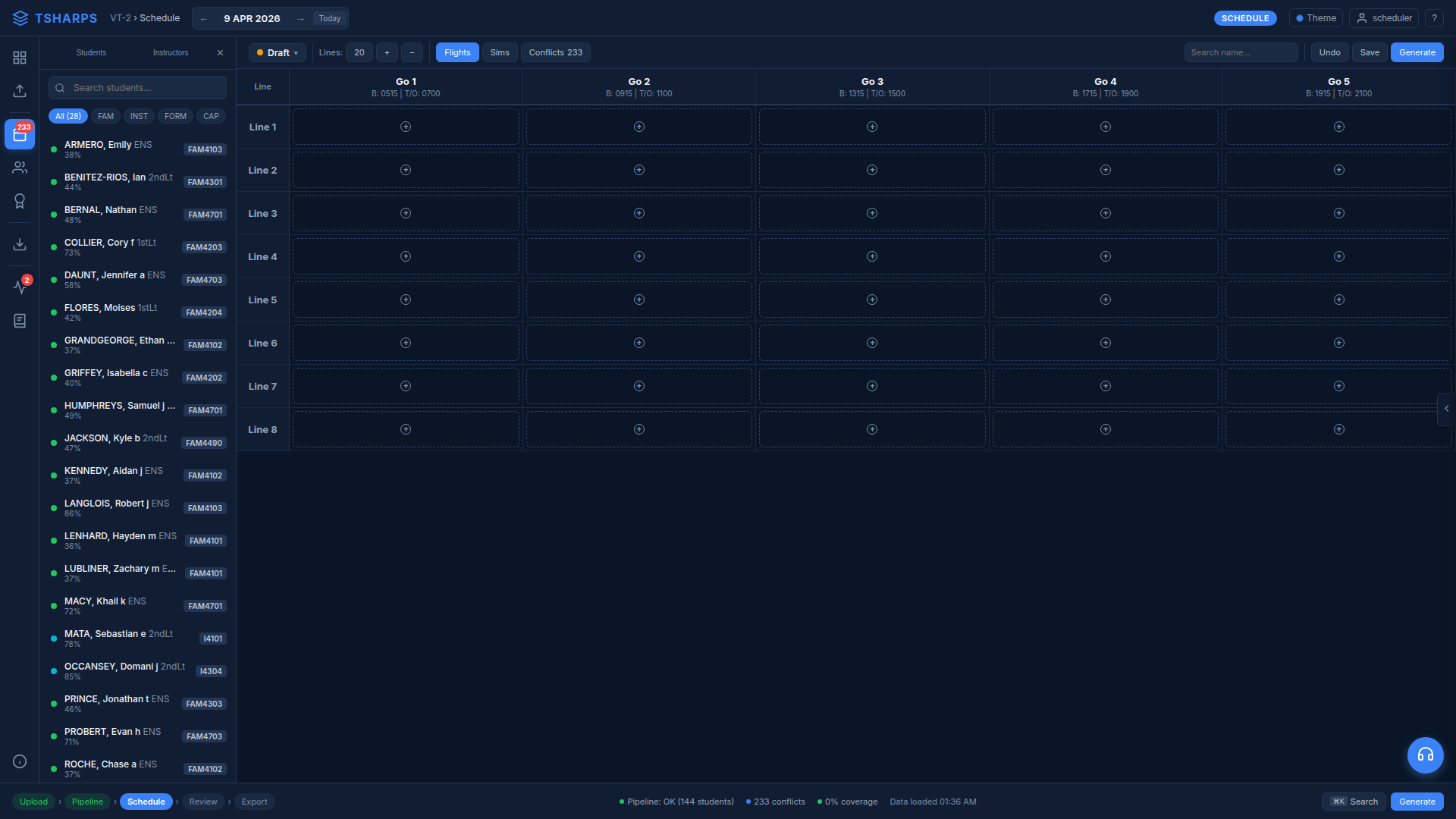
- Columns — GO-1 through GO-5, each with brief/takeoff times
- Rows — Flight lines (adjustable with +/− buttons)
- Click any cell — Assign or change the student/IP pairing
- Toggle between Flights, Sims, and Conflicts in the toolbar
- Left panel shows all students with phase, completion %, and next event
Saving Your Work
- Save — Saves current state as a draft version
- Draft dropdown — Load or compare previous versions
- Undo — Revert last change
- Use Ctrl+S to quick-save
Personnel
Managing instructors, students, and training partnerships.
Instructors
- Status column: Active (green) or Snivel (orange)
- Org column: Sqdn, Wing, FITU, Reserve — click to cycle
- GO columns: Green checkmarks = available, dashes = unavailable
- Filter pills: All, Available, Unavailable
- Search by name to find specific instructors
Students
- Each card shows: name, rank, phase badge, completion %, next event code
- Click a card for full training record in the detail panel
- Phase filter pills: FAM, INST, FORM, CAP
- Students on hold show a yellow indicator
On-Wing Assignments
- Navigate to Personnel → On-Wing tab
- Unassigned students appear at top with IP dropdown
- Only active, qualified IPs are shown in the dropdown
- Click Assign to confirm the pairing
Partnerships
- Switch to Partnerships tab
- Formation pairs — Pair students entering formation phase
- Capstone pairs — Pair students entering capstone phase
- Use Break to dissolve a partnership when needed
Pipeline
Tracking student progression through the training syllabus.
Progression Tracking
- Shows all syllabus events organized by phase (Ground School → FAM → INST → FORM → CAP)
- Color-coded badges: completed, scheduled, failed, not yet attempted
- Right panel: phase gate alerts, approaching solo/check students
- Student simulator: search a student to see their progression flowchart
Holds
- Medical hold (DNIF/DNAF) — Auto-excludes from scheduling
- Admin hold (SOB/PRB) — Administrative pause on training
- Create/remove holds via Admin Panel → Holds tab
- Removing the last hold automatically returns student to Active
- Students on hold are excluded from schedule generation
Next Event Override
- Click a student card → use the override dropdown to set next event manually
- Common uses: re-fly after incomplete, skip waived event, insert extra event
- Requires a reason (logged for audit trail)
- Override clears automatically once the event is completed
Admin Tools
System administration, data management, and configuration. Requires Admin role.
Data Uploads
- Upload module (arrow icon in rail) handles three file types:
- Syllabus — T-SHARP completion report (.xlsx)
- Qualifications — IP designations and quals (.xlsx)
- Snivels — Student and instructor availability (.xlsx)
- System validates before committing — errors flagged row by row
Admin Panel
- Accessible from the side panel on the schedule view
- Students tab — Add/edit student records, manage status
- Instructors tab — Manage IP status and assignments
- Holds tab — Create/remove medical and admin holds
- Snivels tab — Enter instructor availability conflicts
Database Tools
- Snapshot — Create named snapshots before major changes
- Restore — Roll back to a previous snapshot
- Available in dev environments only (not production)
Generation Lab
Compare different generation strategies side-by-side to find the best settings for your fly day.
Presets
Presets are named configurations of generation settings. Each preset saves a complete set of constraints (strategy, max GOs, formation options, etc.) that you can reuse and compare.
- Create: Click "+ New Preset" and configure each setting. Hover text explains what each setting does.
- Edit/Delete: Use the Edit and × buttons on each preset card.
- Limit: Up to 100 presets per account. Your selections persist across sessions.
- Collapse: Click "Collapse" to hide the preset cards and focus on results.
Batch Generation
Check up to 10 presets and click "Run Selected" to generate a schedule with each preset's settings. Generations run sequentially on the selected date.
- Progress bars show the current phase and elapsed time for each run
- Click any timing card to expand the phase-by-phase breakdown (Initialize → Load → Optimize → Assign → Detect conflicts)
- Each generation creates its own schedule document — they don't interfere with each other
Comparing Results
After a batch completes, use the two dropdowns to pick which presets to compare. The view shows:
- Center metrics: Assignments, Coverage %, Unscheduled, Conflicts, Formation Pairs, Optimization Score, and Generation Time. Best values are highlighted in green.
- Side-by-side grids: Both schedules shown with color-coded phase assignments (green=FAM, teal=INST, purple=FORM, blue=CAP).
- Same preset in both: Shows a detail view with stat cards, conflicts grouped by type, warnings, and constraints used.
Slot Drill-Down
Click any slot in the schedule grid to see why that assignment was made:
- Pass type: CP-SAT Optimizer or Greedy Generator, plus Formation/Capstone/Standard pass
- Confidence score: How confident the optimizer was (green=high, amber=medium, red=low)
- IP utilization: How many GOs this instructor is flying vs the maximum
- Student schedule: All other events this student has today
- Conflicts: Any conflicts specific to this slot
- Cross-preset: What other presets put in this exact slot — helps identify where strategies diverge
Debug Workspace
Open the four-tab debug workspace to dig into a generation: Generate → Compare → Diagnose → Insights.
- Auto-switch: After Generate finishes, the workspace jumps to Compare automatically.
- Compare matrix: Click any populated cell to jump to Diagnose with the full score breakdown loaded.
- "Why not here?": Right-click an empty cell in Compare and pick a student — the workspace explains why they weren't scheduled there.
- Insights drill-through: Click an unscheduled student in Insights to open their rejection chain in Diagnose.
Diagnose Tab
Per-cell score breakdown with eleven components and the full rejection chain.
- 11-component score: Workload balance, GO preference, time-of-day fit, IP continuity, block compatibility, lookahead value, qual coverage, recency boost, soft-rule modifier, phase weight, priority boost.
- Rejection chain: Every rule shown in evaluation order with pass/fail and the value that triggered it.
- Alternative candidates: Ranked list of who else was considered for the slot — useful for "we have someone else available" arguments.
- Check Alternative IP: Search box — pick any IP and ask "why not this one?" without re-running.
- Parameter tweaker: Weight sliders + Re-evaluate button preview a setting change against the current candidate set.
Insights Tab
Run-level analytics across every cell, with click-through into Diagnose.
- Top blocking rules chart — which rules caused the most rejections this run.
- IP utilization heat map — spot under- and over-used instructors at a glance.
- Unscheduled students — click any name to open Diagnose with the rejection chain.
- Student priority ranking — the effective priority each student received.
- Coverage trend — multi-day scheduled vs target coverage line.
- Suggested tweaks cards — heuristic weight/rule changes likely to improve the next run. Always re-run to verify.
Preset Editor
Edit the full preset definition without leaving Gen Lab.
- Phase priority: Reorder CAP / FORM / FAM / INST with up/down arrows.
- Recency boost: Configurable day → multiplier rows — add or remove thresholds as needed.
- Priority Students: Search and tag students Low / Normal / High / Critical to give them a per-student boost.
- Strategy selector: balanced, efficiency, student_priority, cpsat.
- Weight sliders: Formation, Capstone, On-wing, IP balance.
- Advanced toggles: balance_instructor_load, require_formation_partners, respect_pinned, allow_instructor_overrides.
API Endpoints (Power Users / GPT)
Skip the UI entirely from scripts or GPT integrations.
- POST /api/comparison/diagnose — single-call pipeline: generate + compare + debug.
- POST /api/comparison/annotated-baseline — create an annotated target with reasoning notes.
- POST /api/comparison/validate-reasoning — pre-flight check on annotations before generation.
- PATCH /api/schedule-generation/rules/{name} — toggle an individual rule on/off.
Recent Features
New capabilities added to the scheduler.
Auto-Save Drafts
Every time you generate a schedule, the system automatically saves a version snapshot named "Auto-save [time]". This protects your work without manual saves.
- Maximum 3 auto-saves per date (oldest pruned when a 4th is created)
- Auto-saves older than 7 days are cleaned up automatically
- Manual saves ("Draft 1", etc.) are never affected by auto-save pruning
- The dock bar shows "Auto-saved HH:MM" after each generation
Warnings Tab
The amber "Warnings" tab in the conflicts panel shows students who weren't scheduled and why:
- Grouped by reason (no qualified IP, all slots full, prerequisite not met, etc.)
- Badge count shows total unscheduled students
- Separate from conflicts — warnings are informational, not errors
Watchbill
The Watchbill tab in Personnel assigns daily duty positions (FDO, RDO, SDO, Wheels Watch, etc.):
- Assignments auto-load from the database on page load
- Select a person from the dropdown — changes save immediately
- Field-specific positions appear based on your selected fields (Barin, Summerdale, etc.)
CP-SAT Optimizer
The CP-SAT (Constraint Programming - Satisfiability) optimizer is a global solver from Google OR-Tools:
- Enable via strategy dropdown in generation settings or in a Generation Lab preset
- Two-pass approach: Pass 1 maximizes student coverage, Pass 2 maximizes IP utilization
- Slower than the greedy generator but finds mathematically optimal assignments
- Best for complex days with many formation flights or tight IP availability
Tips & Shortcuts
Keyboard shortcuts, workflow tips, and frequently asked questions.
Keyboard Shortcuts
Contextual hints appear in the dock as you work.
| Schedule Editing | |
| Ctrl+Z | Undo last change |
| Ctrl+Shift+Z | Redo |
| Ctrl+Click | Select student → click slot to place |
| Shift+Click | Select IP → click slot to place |
| Navigation | |
| Ctrl+B | Go to Schedule view |
| Ctrl+G | Open Generation Lab |
| ← / → | Previous / next day |
| Esc | Close modal or panel |
| General | |
| ? | Open this help panel |
| Ctrl+S | Save current draft |
Workflow Tips
- Follow the 7-step skeddy workflow for consistent results
- Enter all snivels before generating — the optimizer handles deconfliction
- Use phase filter pills to focus on specific student groups
- Save drafts frequently — versions are tracked automatically
- Check the conflict count after generation; aim for zero
- Upload fresh quals data weekly to keep currency accurate
Common Questions
- Schedule won't generate?
- Check that students and IPs exist, quals are uploaded, and the date has availability.
- Student showing wrong next event?
- Use Next Event Override (click student card → override dropdown).
- IP not appearing in dropdown?
- Verify they're Active status and have current qualifications.
- Need to change your password?
- Click your username (top-right) → Change Password.
- What happens if I regenerate after manual edits?
- Manual edits are cleared. Save your draft first to preserve changes. Auto-save creates a snapshot automatically.
- How do I compare different generation strategies?
- Use the Generation Lab (side rail icon). Create presets with different settings, run a batch, and compare results side-by-side.
- Why are students showing as unscheduled?
- Check the Warnings tab in the conflicts panel. Common reasons: no qualified IP available, all slots full, or prerequisite not met.
- What's the difference between CP-SAT and balanced?
- Balanced uses a greedy algorithm (fast, good-enough). CP-SAT uses a global optimizer (slower, mathematically optimal). Use the Gen Lab to compare them on your actual data.